How to Transfer Large Files Between Phone and PC (6 Methods)
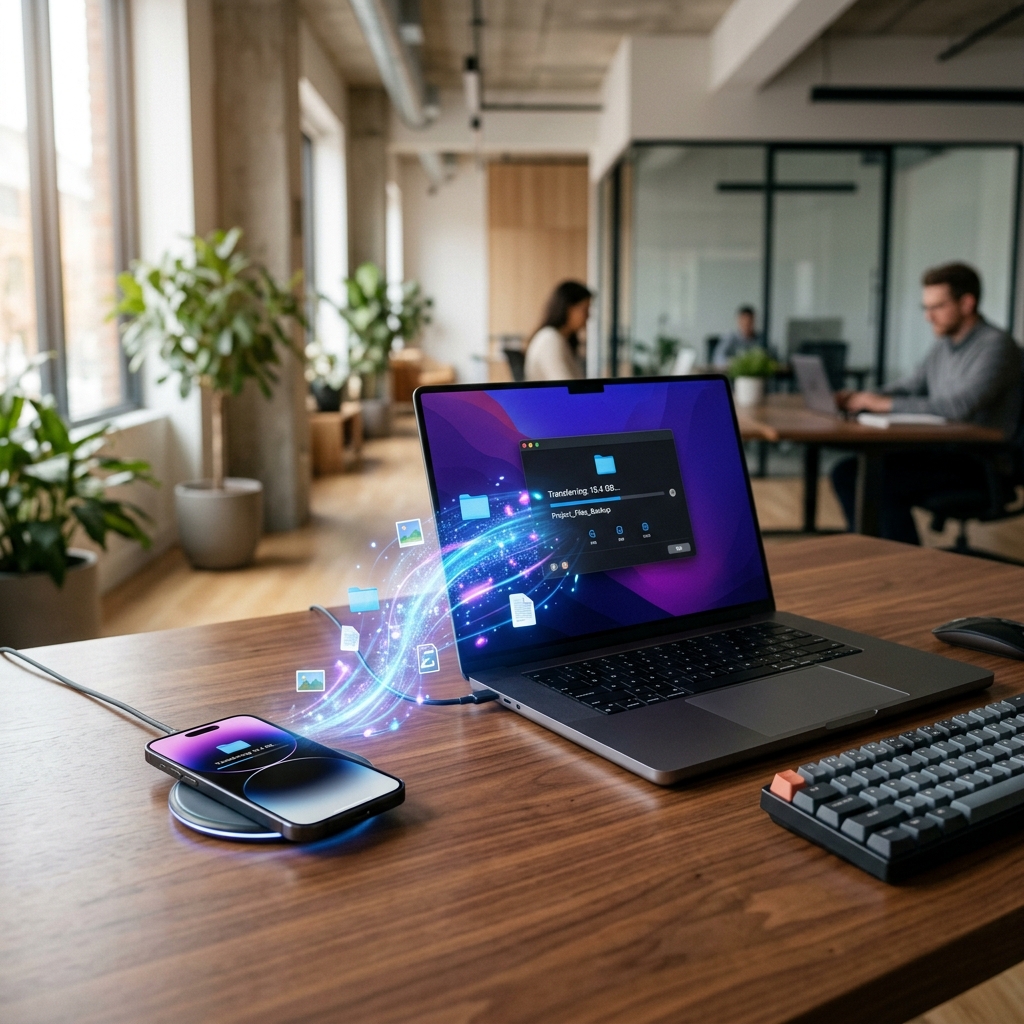
Your phone has a large file on it — a 4K video, a batch of RAW photos, a voice memo you recorded, or a document you need on your computer. Getting it from the phone to the PC (or the other way around) should be simple. But with so many options available — USB, Bluetooth, Wi-Fi, cloud, apps — it is not always clear which method is fastest or most reliable for large files.
This guide covers six practical methods for transferring large files between phone and PC, with clear guidance on which suits different situations.
💡 Direct Answer / Quick Summary
To transfer large files between a phone and PC, the fastest methods are: (1) USB cable — direct, reliable, no internet required; (2) local Wi-Fi transfer using a browser-based tool on the same network; (3) cloud storage like Google Drive, iCloud or OneDrive. For large files, USB is fastest if a cable is available. For wireless transfer without a cable, local Wi-Fi tools work well on the same network.
Method 1: USB Cable (Fastest — No Internet Required)
Best for: Large files, fast transfers, reliable connection, no internet needed.
A USB cable is the most straightforward way to move large files between a phone and PC. Transfer speeds are limited only by the cable and port standard — USB 3.0 and USB-C connections handle large files quickly.
Android to PC via USB
- Connect your Android phone to the PC with a USB-C or Micro-USB cable
- On the phone, pull down the notification shade and tap the USB notification
- Select File Transfer (or MTP — Media Transfer Protocol)
- On the PC, open File Explorer — your phone appears as a drive
- Navigate to your files (usually in DCIM for photos/videos or Download for other files)
- Copy and paste to your desired location on the PC
iPhone to PC via USB
- Connect your iPhone to the PC with a Lightning or USB-C cable
- On the iPhone, tap Trust when prompted
- On the PC, open File Explorer — your iPhone appears as a portable device
- Navigate to Internal Storage → DCIM for photos and videos
- Copy files directly to your PC
Note: For full iPhone file access on Windows, Apple's iCloud for Windows or iTunes may be needed for non-media files. Source: Apple Support
Method 2: Local Wi-Fi Transfer (Wireless, Same Network — No Cable)
Best for: Wireless transfer of large files when both devices are on the same Wi-Fi network, without using internet bandwidth or cloud storage.
When your phone and PC are connected to the same Wi-Fi router or hotspot, you can transfer files directly between them at local network speeds — without the file leaving your network or needing internet access.
HexaSend's local network mode is designed exactly for this. Both devices open hexasend.com in their browsers, switch to local network mode, and complete the transfer — the file moves directly between the two devices over your local Wi-Fi.
Steps using HexaSend local network mode
- Connect both your phone and PC to the same Wi-Fi network
- On the sending device, open hexasend.com and select Local Network mode
- Upload the file and get a 6-digit code
- On the receiving device, open hexasend.com, select Local Network mode, and enter the code
- The file transfers directly between devices over your local network — fast, private, no cloud involved
This works across any combination of Android, iPhone, Windows, and macOS, as long as both devices are on the same network.
Method 3: Cloud Storage (Google Drive, iCloud, OneDrive)
Best for: Files you want accessible on multiple devices over time, or when devices are not on the same network.
Upload the file from your phone, then download it on your PC — or vice versa. The file travels through the cloud service's servers.
Using Google Drive (Android & iOS)
- On your phone, open the Google Drive app and tap + → Upload
- Select your file and wait for the upload to complete
- On your PC, open drive.google.com in a browser
- Find your file and click Download
Storage note: Google Drive offers 15 GB of free storage, shared across Gmail, Photos, and Drive. Large video files consume this quickly. Source: Google Drive Help
Using iCloud Drive (iPhone to Mac or Windows PC)
- On iPhone, save your file to the Files app → iCloud Drive
- On Mac, it appears automatically in Finder → iCloud Drive
- On Windows, install iCloud for Windows, then access via File Explorer
Source: Apple Support — iCloud for Windows
Method 4: AirDrop (iPhone / iPad to Mac)
Best for: Apple device users — the fastest and simplest wireless transfer within the Apple ecosystem.
AirDrop uses a combination of Bluetooth and Wi-Fi Direct to transfer files between nearby Apple devices. It does not require an internet connection or the same Wi-Fi network.
- On your iPhone, open the file and tap Share → AirDrop
- Your Mac should appear in the list of nearby devices
- Tap the Mac name — the file appears in the Mac's Downloads folder automatically
AirDrop handles large files well and transfers at local wireless speeds. Source: Apple Support — AirDrop
Note: AirDrop works between Apple devices only. For Android to Mac or iPhone to Windows, use a different method.
Method 5: Bluetooth (Slow — Small Files Only)
Best for: Small documents or contacts where no other method is available; not recommended for large files.
Bluetooth transfer is widely supported across Android and Windows, but it is significantly slower than Wi-Fi or USB for large files. Typical Bluetooth file transfer speeds are 1–3 Mbps, compared to 50–600 Mbps for USB 3.0 or local Wi-Fi.
For a 1 GB video file, Bluetooth transfer can take 45 minutes or more. For large files, use USB, local Wi-Fi, or cloud storage instead.
Method 6: Browser-Based Transfer via Internet
Best for: Transferring files between phone and PC when not on the same network, or sharing with someone else in a different location.
If both devices have internet access but are not on the same local network, browser-based transfer tools and cloud storage links work across networks.
Using HexaSend over the internet:
- On the sending device, open hexasend.com and select Internet mode
- Upload your file and get a 6-digit code
- On the receiving device (any location, any network), open hexasend.com, enter the code, and download
No account needed on either device. Works between any combination of Android, iPhone, Windows, macOS.
Comparison: Which Method for Which Situation?
| Situation | Best Method | ||| | Large file, cable available | USB (Method 1) | | Wireless, same Wi-Fi network | Local Wi-Fi / HexaSend local (Method 2) | | Need file on multiple devices long-term | Cloud storage (Method 3) | | iPhone to Mac, nearby | AirDrop (Method 4) | | Different locations, different networks | Browser-based internet transfer (Method 6) | | Only Bluetooth available | Bluetooth — only for small files (Method 5) |
Tips for Faster, More Reliable Transfers
- Enable File Transfer mode on Android. When connecting via USB, make sure to select File Transfer (MTP) and not Charging Only — otherwise the PC will not recognise your phone's storage.
- Use USB 3.0 ports for large files. On Windows PCs, USB 3.0 ports (usually marked in blue) are significantly faster than USB 2.0 for large transfers.
- Keep devices on the same Wi-Fi band. For local Wi-Fi transfers, both devices perform best when connected to the same 5 GHz Wi-Fi band rather than one on 2.4 GHz and one on 5 GHz.
- Don't move files while uploading. Whether via USB or cloud, avoid navigating away from the file location mid-transfer to prevent errors.
- Free up phone storage first. If your phone is nearly full, move files in batches to avoid running out of space mid-copy.
Conclusion
For most large file transfers between a phone and PC, the choice comes down to: do you have a USB cable available, and are both devices on the same Wi-Fi network?
A cable gives the fastest and most reliable transfer. If no cable is available, local Wi-Fi transfer is the next best option. Cloud storage works well when you need the file available across multiple devices or at different times.
For wireless transfers on the same network, try HexaSend's local network mode. Open hexasend.com on both devices, switch to local mode, and complete your transfer without internet, cloud accounts, or cables. Any device, any platform, any file type.
5. AEO
Quick Answer (60 words): To transfer large files between a phone and PC, the fastest methods are: USB cable (direct, no internet), local Wi-Fi transfer using a browser-based tool on the same network, or cloud storage via Google Drive, iCloud, or OneDrive. For wireless transfers on the same network, local mode tools work across Android, iPhone, Windows, and macOS without cables or internet.
Featured Snippet Opportunities:
- "What is the fastest way to transfer files from phone to PC?" → Quick Answer
- Method comparison table: Situation | Best Method
- "Android to PC via USB" → Step-by-step numbered process
- "AirDrop — iPhone to Mac" → Step-by-step
- Bluetooth caveat: "not recommended for large files" → clear definitive statement for snippets
Conversational Questions for AI:
- "How do I get files off my phone onto my laptop?"
- "Can I transfer files from Android to PC without USB?"
- "How do I move photos from my iPhone to my Windows computer?"
- "What's faster — USB or Wi-Fi for phone to PC transfer?"
- "How do I share files between my Android and Windows PC?"
6. FAQ
Q1: What is the fastest way to transfer large files from a phone to a PC? A USB cable is typically fastest for large files — USB 3.0 speeds can reach several hundred Mbps. If no cable is available, a local Wi-Fi transfer on the same network is the next fastest wireless option. Cloud storage upload and download adds extra steps and depends on internet speed at both ends.
Q2: How do I transfer files from Android to a PC without a cable? With both devices on the same Wi-Fi network, use a local network file transfer tool like HexaSend's local mode — open the site on both devices, upload on Android, enter the code on the PC. Alternatively, upload to Google Drive on Android and download on your PC.
Q3: How do I transfer files from an iPhone to a Windows PC? Connect via a USB Lightning or USB-C cable — your iPhone appears in File Explorer as a portable device. For wireless transfer, use iCloud Drive with iCloud for Windows installed, or use a browser-based tool like HexaSend on both devices over the internet or local network.
Q4: Can I transfer files between phone and PC without internet? Yes. USB cable transfer needs no internet. Local Wi-Fi transfer using HexaSend's local network mode also transfers files directly between devices on the same network without using internet bandwidth. AirDrop (Apple devices) also works without internet.
Q5: Is Bluetooth good for large file transfers? No. Bluetooth is significantly slower than USB or Wi-Fi for large files. Typical Bluetooth speeds are 1–3 Mbps. Transferring a 1 GB file via Bluetooth can take 45 minutes or more. Use USB or local Wi-Fi for large files, and save Bluetooth for small documents or contacts.
Q6: How do I transfer files from phone to PC on the same Wi-Fi? Use a browser-based local network transfer tool. On HexaSend, both devices switch to local network mode. The sender uploads the file and gets a 6-digit code; the receiver enters it on the same site. The file transfers directly over your local network — no internet, no cloud, no account.
Q7: How do I transfer RAW photos or 4K video from phone to PC without losing quality? Use USB cable transfer or local Wi-Fi transfer — both send the original file without re-encoding or compression. Avoid messaging apps (WhatsApp, Messenger) which re-compress media. AirDrop also preserves original quality for Apple-to-Apple transfers. Cloud storage (Google Drive, iCloud) stores and downloads the original file intact.
Girjesh Suryawanshi
Verified AuthorSenior Full-Stack Engineer & Cybersecurity Specialist
With over 15 years of professional software architecture experience, Girjesh specializes in real-time WebRTC peer-to-peer communication, network optimization, and privacy-focused data exchange protocols.