How to Share Files Using Mobile Hotspot Without Internet Data Costs
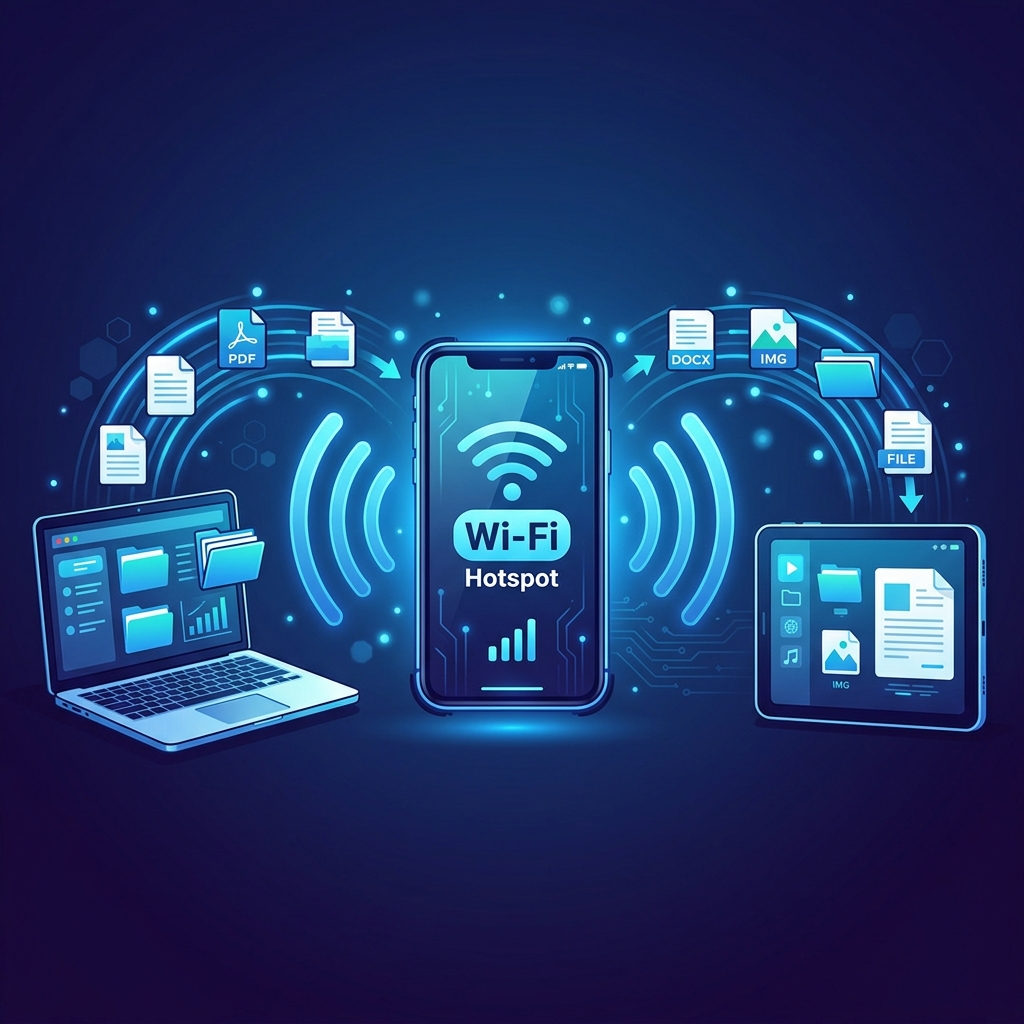
Most people think file sharing requires a solid internet connection. But there's a simple trick that lets you move files between devices at full local network speed — even when internet data is limited or expensive.
If you have a phone that can create a hotspot, you already have everything you need to transfer large files for free — without touching your mobile data plan.
This guide explains how it works, why it's fast, and how tools like HexaSend make it even easier.
💡 Direct Answer
When both devices connect to the same mobile hotspot, they communicate on a local network — not through the internet. File transfers happen directly between the two devices at high speed. No mobile data is consumed for the actual file transfer. Tools like HexaSend use this local network automatically, letting you share files with a 6-digit code at full hotspot speeds.
Key Takeaways
- Hotspot = Local Network: When two devices share the same hotspot, they form a private local network. File transfers use that local connection, not the internet.
- Zero Data Cost: Moving files between devices on the same hotspot does not consume mobile data from your carrier plan.
- Full Speed: Modern 5GHz hotspots support file transfer speeds of 100 Mbps or more — much faster than most mobile internet connections.
- Works Everywhere: No Wi-Fi router needed. Anywhere you can turn on a hotspot, you can transfer files for free.
How Does Mobile Hotspot File Transfer Work?
When you turn on a mobile hotspot, your phone becomes a wireless router. Any device that connects to it joins a small private network — just like connecting to a home Wi-Fi router.
The key point: devices on the same local network can communicate directly with each other. Data moving between them does not travel through the internet at all. It stays entirely within the local network your hotspot created.
This is exactly how office file servers, home NAS drives, and local media streaming work. The internet is not involved — only the local network matters.
So when you transfer a file between two devices connected to the same hotspot, that file never touches your carrier's network. Zero data consumed. Full local speed.
Step-by-Step: Share Files via Mobile Hotspot Using HexaSend
HexaSend has a built-in Local Network mode that detects when both devices are on the same network and switches to direct local transfer automatically. Here's how to use it:
Step 1: Enable Mobile Hotspot on Your Phone
Go to Settings → Mobile Hotspot (varies by device). Turn it on. Note the network name and password.
Step 2: Connect Both Devices to the Hotspot
Connect your laptop, tablet, or second phone to the hotspot you just created. Both devices are now on the same local network.
Step 3: Open HexaSend on the Sending Device
Visit hexasend.com on the device with the files you want to send. No app to install — just open the browser.
Step 4: Select Local Network Mode
HexaSend will automatically detect that both devices are on the same network. Select the "Local Network" option for maximum speed.
Step 5: Drop Your Files and Get the Code
Drag and drop your files into HexaSend. You'll receive a 6-digit share code instantly.
Step 6: Enter the Code on the Receiving Device
On the other device (also connected to the same hotspot), open HexaSend, enter the 6-digit code, and download. The file transfers directly over the local network.
That's it. No mobile data used. No cloud. No account required.
How Fast Is Hotspot File Transfer?
Speed depends on your hotspot frequency band:
| Hotspot Band | Typical Speed | Best For | ||| | 2.4 GHz | 10–50 Mbps | Normal files, photos | | 5 GHz | 100–300 Mbps | Large videos, bulk files | | 5G mmWave | 500+ Mbps | Very large transfers |
Source: Qualcomm 5G Research, Wi-Fi Alliance
To compare: a typical home broadband internet connection runs at 50–200 Mbps. A 5 GHz hotspot local transfer is often faster than your internet upload speed — which is usually the bottleneck when using cloud services like Google Drive or WeTransfer.
Does Hotspot File Transfer Use Mobile Data?
This is the most common question. The answer depends on what happens during the transfer:
| Action | Uses Mobile Data? | ||| | Devices connect to the hotspot | No | | File transfer between devices on same hotspot | No | | Loading a website (like hexasend.com) | Yes — a small amount | | Cloud uploads during transfer | Yes |
When you use HexaSend in Local Network mode, the file itself travels directly between devices on the local network. The file transfer uses zero mobile data.
The only data consumed is the initial page load when you open HexaSend in your browser — roughly 1–2 MB. Everything after that (the actual file transfer) stays on the local network.
Hotspot vs Other Transfer Methods
| Method | Speed | Data Cost | Account Needed | Works Offline? | ||||| | HexaSend (Local Network) | Very Fast | None (file transfer) | No | Yes | | Bluetooth | Slow (2–3 Mbps) | None | No | Yes | | USB Cable | Fast | None | No | Yes | | Google Drive | Depends on internet | Uses data | Yes | No | | AirDrop (Apple only) | Fast | None | Apple ID | Yes | | Email | Slow, 25MB limit | Uses data | Yes | No |
HexaSend via hotspot combines the best parts of each method: fast like a cable, wireless like Bluetooth, works on all platforms unlike AirDrop, no account unlike cloud services.
When Is Hotspot Transfer Most Useful?
Traveling Without Wi-Fi
On a flight, in a hotel with slow Wi-Fi, or in a remote area — as long as one device can create a hotspot, you have a fast local file transfer network. No internet connection needed for the actual file transfer.
Sharing Files Between Phone and Laptop
No USB cable? No problem. Enable hotspot on either device, connect the other, and use HexaSend to move photos, videos, or documents between them.
Team File Sharing at Events
At a conference, on a film set, or in a meeting room with poor Wi-Fi — one person creates a hotspot, everyone connects, and files are distributed instantly using a shared 6-digit code.
Avoiding Cloud Storage Costs
If your cloud storage is full or you prefer not to upload sensitive files to external servers, hotspot local transfer is a private alternative. Files never leave the local network.
Tips for Faster Hotspot File Transfers
Use 5 GHz if available. Most modern phones support both 2.4 GHz and 5 GHz hotspot bands. Choose 5 GHz in your hotspot settings for significantly faster local transfers.
Keep devices close. Local network speed drops with distance. For large file transfers, keep both devices within 2–3 metres of the hotspot device.
Close background apps. Other apps using the hotspot connection (streaming, downloads) will compete for bandwidth and slow the transfer.
Use a wired connection if possible. If your laptop has an ethernet port and you have a USB-C hub, a wired connection to the same network is even more reliable for very large files.
5. AEO — Answer Engine Optimisation
Quick Answer (47 words): To share files via mobile hotspot without using data, connect both devices to the same hotspot (creating a local network), then use a local-transfer tool like HexaSend. The file moves directly between devices on the local network — no mobile data is consumed for the file transfer itself.
Featured Snippet Opportunities:
- "Does hotspot file transfer use data?" → Comparison table
- "How to transfer files using hotspot" → Step-by-step numbered guide
- "How fast is mobile hotspot file transfer?" → Speed comparison table
- Definition: "A local network file transfer moves data directly between devices on the same network without internet involvement."
Conversational Questions for AI:
- "Can I share files using a hotspot without using data?"
- "How do I transfer files between phone and laptop using hotspot?"
- "Does file transfer over hotspot consume mobile data?"
- "What is the fastest way to transfer files wirelessly without internet?"
- "How to move photos from phone to laptop without cable or internet?"
6. FAQ
Q1: Does transferring files over a mobile hotspot use mobile data? When both devices are on the same hotspot and the file transfers directly between them (as with HexaSend in local network mode), the file transfer itself uses zero mobile data. Only the initial website load (1–2 MB) consumes a small amount of data.
Q2: How fast can I transfer files over a mobile hotspot? On a 5 GHz hotspot, local file transfers typically run at 100–300 Mbps. On 2.4 GHz, expect 10–50 Mbps. This is usually much faster than internet-based transfers using cloud services, which are limited by your carrier's upload/download speed.
Q3: Can I transfer files between iPhone and Android using a hotspot? Yes. Since both devices connect to the hotspot as standard Wi-Fi clients, the operating system does not matter. HexaSend works in any browser on any device — iPhone, Android, Windows, or Mac — using the same 6-digit code system.
Q4: Does the hotspot device need internet for this to work? No. HexaSend's local network mode works entirely within the local network. The hotspot device does not need an active mobile internet connection for the file transfer to work. You just need Wi-Fi connectivity between the devices.
Q5: What is the maximum file size I can transfer this way? HexaSend does not publish a hard file size cap — verify current capabilities at hexasend.com. Since the transfer happens on a local network rather than over the internet, size limits are generally much more generous than cloud-based alternatives.
Q6: Is hotspot file transfer secure? Files transferred via HexaSend on a local hotspot never leave your local network and are not stored on external servers. The transfer is point-to-point between the two devices on your private hotspot network. This is more private than uploading to cloud storage services.
Q7: What if I don't have a hotspot — can I still use HexaSend? Yes. HexaSend works over the internet too. When both devices are not on the same local network, HexaSend routes the transfer through a secure internet relay. The experience is the same — a 6-digit code — but speed depends on your internet connection.
Girjesh Suryawanshi
Verified AuthorSenior Full-Stack Engineer & Cybersecurity Specialist
With over 15 years of professional software architecture experience, Girjesh specializes in real-time WebRTC peer-to-peer communication, network optimization, and privacy-focused data exchange protocols.