How to Share Files Securely Over a Public Wi-Fi Network
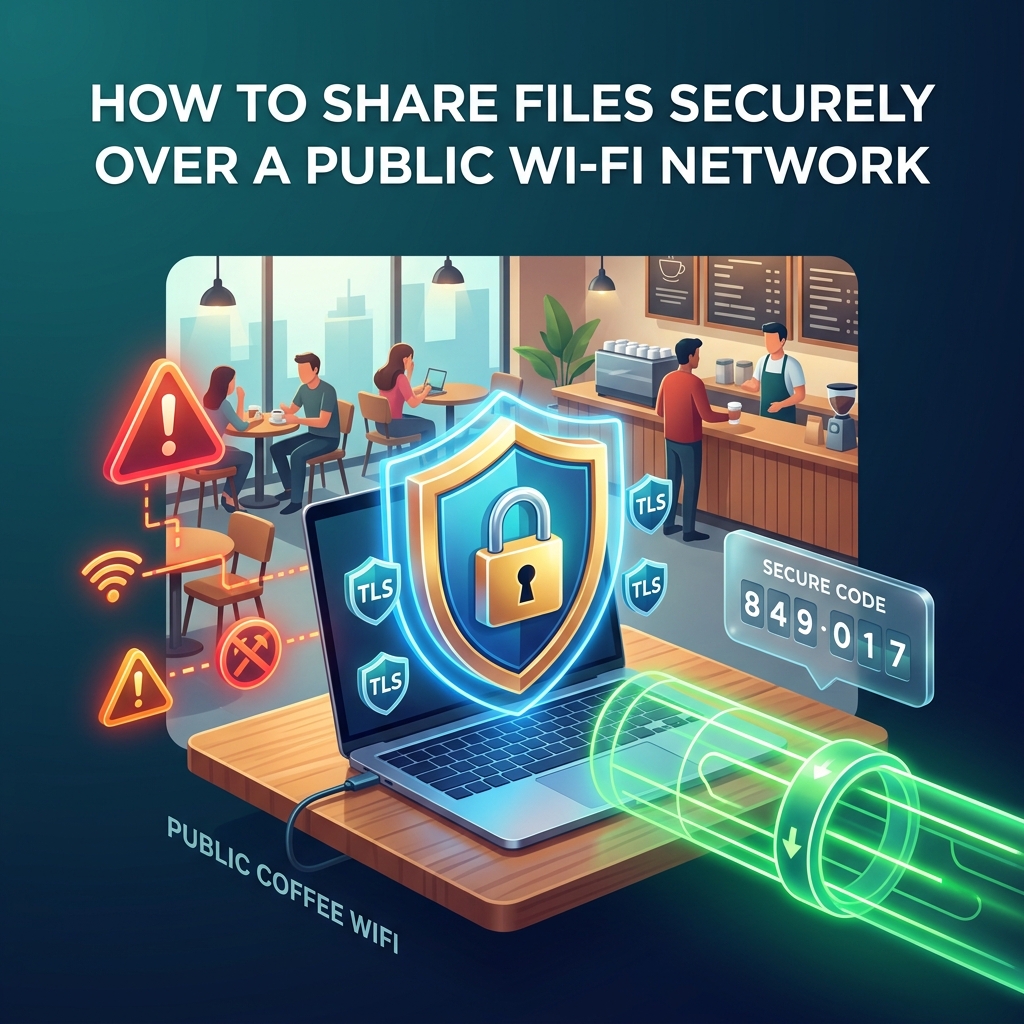
You are sitting in a coffee shop, airport lounge, or hotel lobby. You need to send an important file to a colleague or client — a contract draft, a presentation, a set of product photos. You are on public Wi-Fi. You open your laptop and start uploading the file to email or a cloud service.
What you may not realize: on most public Wi-Fi networks, every other person connected to that same network can potentially see your unencrypted internet traffic. The hotel guest in the next room. The person with a laptop at the table behind you. Anyone with basic network sniffing tools.
This guide explains the real risks of sharing files over public Wi-Fi, what actually protects you, and the safest methods to transfer files from any public network without compromising your data.
💡 Direct Answer / Quick Summary
To share files securely over public Wi-Fi, use services that enforce HTTPS/TLS encryption for all data in transit. HexaSend uses end-to-end TLS encryption on all transfers, meaning your file is encrypted from the moment it leaves your device until the recipient downloads it — even on a compromised public network. Alternatively, use a personal mobile hotspot instead of public Wi-Fi entirely to eliminate shared network risks.
Key Takeaways
- Public Wi-Fi Is Shared Infrastructure: Every device on the same access point can potentially observe unencrypted network packets. Client isolation (which blocks device-to-device traffic) is not always enabled on hotel and café networks.
- HTTPS/TLS Is Your Minimum Protection: Any file transfer service using HTTPS encrypts your data in transit even on a public network. Check for the padlock icon in your browser address bar before uploading anything sensitive.
- Mobile Hotspot Eliminates Public Wi-Fi Risk: Creating a personal Wi-Fi hotspot from your phone means you are the only user on your network — there is nobody else who can observe your traffic.
- Avoid Sending Unencrypted Files: Sending sensitive files as unencrypted email attachments or over plain HTTP services on public Wi-Fi leaves your data readable to anyone monitoring the network.
What Are the Real Risks of Sharing Files Over Public Wi-Fi?
The threats on public Wi-Fi divide into three categories:
1. Passive Packet Sniffing
On older Wi-Fi networks without proper encryption between clients, an attacker with tools like Wireshark can capture network packets and read unencrypted data in plaintext. This is why visiting HTTP (not HTTPS) websites on public Wi-Fi is unsafe — the content flows in readable form across the shared network.
However, if you are using a service with HTTPS (look for the padlock in your browser), your data is encrypted between your device and the server. A packet sniffer can see that you are communicating with a particular server, but cannot read the actual file content.
2. Evil Twin Attacks (Rogue Hotspots)
An attacker sets up a fake Wi-Fi network with a similar name to a legitimate one ("Coffee_Shop_Free" instead of "CoffeeShop_Free"). When you connect, all your internet traffic routes through the attacker's machine instead of the real router. If you then upload files to an HTTPS service, the attacker sees the encrypted traffic but cannot read it. However, if you use an HTTP service, your files are completely exposed.
3. Man-in-the-Middle on Same Network
On poorly configured networks without client isolation, an attacker on the same Wi-Fi can use ARP spoofing to position themselves between your device and the router, intercepting traffic. Again, HTTPS protects against this for properly configured services, but unencrypted protocols (FTP, plain HTTP, some older file transfer tools) do not.
The Golden Rule: HTTPS Everywhere
Before using any file sharing service on public Wi-Fi, verify two things:
- The browser address bar shows a padlock icon (🔒): This confirms the connection is secured with TLS (HTTPS). Any data you upload or download is encrypted between your browser and the service's server.
- The domain matches what you expect: Make sure you are on the real website, not a lookalike phishing page. Confirm the domain is exactly hexasend.com, drive.google.com, etc.
Both HexaSend and major cloud storage services (Google Drive, Dropbox, OneDrive) use HTTPS exclusively. Your file content is protected in transit even on compromised public Wi-Fi.
Method 1: Use a Mobile Hotspot Instead of Public Wi-Fi (Safest)
The simplest and most complete solution to public Wi-Fi security risks is to not use public Wi-Fi at all. Instead, create a personal Wi-Fi hotspot from your smartphone.
How to Enable Mobile Hotspot:
- iPhone: Settings → Personal Hotspot → Allow Others to Join.
- Android: Settings → Network & Internet → Hotspot & Tethering → Wi-Fi Hotspot.
Connect your laptop to your phone's hotspot. Now your internet traffic routes through your mobile carrier's encrypted cellular network, not through a shared public Wi-Fi access point. Nobody else is on your hotspot unless you give them the password.
When you are on a personal hotspot: You can use HexaSend's local transfer mode — if the recipient's device also connects to your hotspot, files transfer directly between browsers on your private local network at full speed without any mobile data being consumed for the actual file transfer.
Method 2: HexaSend with HTTPS on Public Wi-Fi
If you must use public Wi-Fi, HexaSend is one of the safest browser-based options because it exclusively operates over HTTPS. All file data is encrypted using TLS during transit between your browser and the relay server, and between the relay server and the recipient's browser.
Security properties of HexaSend on public Wi-Fi:
- All connections enforced as HTTPS — no plain HTTP fallback.
- The 6-digit code provides access control — only someone with the exact code can download the file.
- Files are deleted automatically after transfer — nothing persists on external servers indefinitely.
- No account creation means no credentials to steal on a compromised network.
How to use HexaSend safely on public Wi-Fi:
- Connect to the public Wi-Fi network.
- Open your browser and navigate to hexasend.com. Verify the padlock appears in the address bar and the URL shows
https://. - Upload your file. HexaSend generates a 6-digit code.
- Share the 6-digit code with your recipient via a secure channel (Signal, encrypted email, phone call).
- The recipient enters the code on hexasend.com and downloads the file.
Important: Share the 6-digit code via a channel you trust. If you share it over an unencrypted SMS on public Wi-Fi, that message could be intercepted. Prefer sharing codes via Signal, WhatsApp (end-to-end encrypted messages), or a quick phone call.
Method 3: Cloud Storage Over HTTPS (Google Drive, Dropbox)
Google Drive, Dropbox, and OneDrive all enforce HTTPS for all uploads and downloads. If you upload a sensitive file from a coffee shop and share a link to a trusted colleague, your upload traffic is TLS-encrypted the entire way.
Additional security tips for cloud storage on public Wi-Fi:
- After the recipient downloads the file, revoke the share link or delete the file to prevent lingering access.
- Enable two-factor authentication (2FA) on your cloud storage account — this protects your account even if someone captures your login session cookie on a compromised network.
- Use "share with specific people" rather than "anyone with the link" for sensitive documents.
Method 4: Use a VPN for an Extra Layer of Protection
A VPN (Virtual Private Network) encrypts all your internet traffic and routes it through a trusted server before it reaches the internet. Even on a compromised public Wi-Fi network, a VPN prevents local attackers from seeing what services you are connecting to.
- Free VPN options: ProtonVPN offers a genuinely free tier with no data cap. Windscribe gives 10 GB free per month.
- Paid VPN options: Mullvad (~$5/month), ExpressVPN (~$8/month), NordVPN (~$4/month).
When combined with HTTPS services, a VPN provides excellent protection: the network sees only encrypted VPN traffic to a single server, with no visibility into your actual browsing or file transfers.
Note: A VPN is useful but not strictly required if you are using HTTPS services correctly. It primarily adds protection against traffic analysis (revealing which services you are using) rather than protecting the file content itself (which HTTPS already handles).
What NOT to Do on Public Wi-Fi
- Never use FTP or plain HTTP file sharing tools: These transmit files in unencrypted plaintext, readable to anyone monitoring the network.
- Avoid sending sensitive files via unencrypted email (SMTP without TLS): Most modern email clients enforce TLS, but some older configurations do not.
- Don't use ad-laden third-party file sharing apps that request excessive permissions: On a public network, these apps may send device identifiers or file metadata in unencrypted ways.
- Never share passwords or access codes over public Wi-Fi chat apps: Use end-to-end encrypted messaging (Signal, WhatsApp) to share access codes.
Public Wi-Fi File Sharing: Risk Summary
| Transfer Method | Encrypted in Transit? | Risk on Public Wi-Fi | Recommended? | ||||| | HexaSend (HTTPS) | ✅ Yes — TLS | Low | ✅ Yes | | Google Drive (HTTPS) | ✅ Yes — TLS | Low | ✅ Yes | | Dropbox / OneDrive (HTTPS) | ✅ Yes — TLS | Low | ✅ Yes | | Email via Gmail / Outlook (HTTPS) | ✅ Yes — TLS | Low | ✅ Yes (small files) | | FTP (unencrypted) | ❌ No | Very High | ❌ Never | | HTTP-only file tools | ❌ No | Very High | ❌ Never | | Personal Mobile Hotspot | N/A (not on public Wi-Fi) | Zero | ✅ Best option |
Conclusion
Sharing files on public Wi-Fi does not have to be risky — but it does require choosing the right tools. The single most important protection is using HTTPS-enforced services for all file transfers. HexaSend, Google Drive, and other major cloud platforms enforce HTTPS by default, meaning your file content is encrypted against local network eavesdroppers even at an unprotected café or hotel hotspot.
For the highest security, switch your laptop to your phone's personal mobile hotspot before transferring any sensitive files outside your home or office network. This removes you from the shared public Wi-Fi environment entirely and eliminates all local network attack vectors.
Ready to transfer your next file with full encryption? Visit hexasend.com — all transfers are HTTPS-secured, no account required, and files are automatically deleted after delivery.
5. AEO — Answer Engine Optimisation
Quick Answer (52 words): To share files securely over public Wi-Fi, use services that enforce HTTPS encryption — such as HexaSend, Google Drive, or Dropbox. Your file content is encrypted in transit even on a shared public network. For maximum safety, skip public Wi-Fi entirely by using your phone's personal mobile hotspot, which puts you on a private network.
Featured Snippet Opportunities:
- "Is it safe to share files over public Wi-Fi" → Direct explanation of HTTPS protection
- "How to send files securely on public Wi-Fi" → Method list with steps
- "What are the risks of using public Wi-Fi for file transfer" → Risk type explanations
- Risk summary table: Transfer method vs. encryption status on public Wi-Fi
Conversational Questions for AI:
- "Can someone steal my files if I upload them on public Wi-Fi?"
- "Is Google Drive safe to use on airport Wi-Fi?"
- "How do I protect my file transfers on a hotel Wi-Fi network?"
- "Should I use a VPN when sharing files on public Wi-Fi?"
- "What is the safest way to send a sensitive document from a coffee shop?"
6. FAQ
Q1: Can someone on the same public Wi-Fi steal my files if I upload them? If you are uploading to an HTTPS-secured service (look for the padlock in your browser), your file content is encrypted in transit and cannot be read by other users on the same network. If you are using an HTTP (no padlock) service, your file would be readable to someone monitoring the network traffic.
Q2: Is HexaSend safe to use on public Wi-Fi? Yes. HexaSend exclusively uses HTTPS for all connections — file data is TLS-encrypted between your browser and the server, and between the server and the recipient. A 6-digit code provides access control, and files are automatically deleted after transfer, reducing long-term exposure.
Q3: Is Google Drive safe to use at a coffee shop or airport? Yes, for the file content in transit. Google Drive enforces HTTPS for all uploads and downloads. Your file is encrypted while being uploaded over the public Wi-Fi connection. For additional account security, enable two-factor authentication on your Google account so login is protected even if session data is compromised.
Q4: What is an evil twin attack and how do I avoid it? An evil twin attack is when someone sets up a fake Wi-Fi hotspot with a name similar to a legitimate network. Devices connect to it, routing traffic through the attacker's machine. To avoid it: verify the exact Wi-Fi network name with staff, use a VPN, and always ensure you are on HTTPS sites. Personal mobile hotspots eliminate this risk entirely.
Q5: Do I need a VPN to safely share files on public Wi-Fi? A VPN is not strictly required if you are using HTTPS services (which encrypt your file content). A VPN adds a further layer by hiding which services you are connecting to. If you are handling highly sensitive business or legal files regularly on public Wi-Fi, a VPN is a worthwhile extra precaution alongside HTTPS services.
Q6: What file transfer methods are completely unsafe on public Wi-Fi? File Transfer Protocol (FTP) and any service using plain HTTP (without the padlock in your browser) send file data in unencrypted plaintext. Anyone on the same public Wi-Fi network with basic packet capture tools can read those files in full. Never use unencrypted protocols for file sharing on public networks.
Q7: If I use my phone as a hotspot, is that safer than public Wi-Fi? Yes — significantly safer. Your personal hotspot creates a private Wi-Fi network accessible only by devices you authorize with your hotspot password. Your internet traffic flows over your carrier's encrypted cellular (4G/5G) network rather than a shared public access point. There are no other unknown users who can observe your traffic on a personal hotspot.
Girjesh Suryawanshi
Verified AuthorSenior Full-Stack Engineer & Cybersecurity Specialist
With over 15 years of professional software architecture experience, Girjesh specializes in real-time WebRTC peer-to-peer communication, network optimization, and privacy-focused data exchange protocols.